Audit Logs: Know What Changed, and Who Changed It
Audit Logs give you a searchable, filterable record of activity across your StreamShark account, in the portal and via the API. Available now for enterprise customers.
An event’s privacy settings look different to how you remember leaving them. A video is missing and nobody is sure whether it was deleted or never uploaded in the first place. Someone reports they couldn’t get into a stream, and you need to know whether their login actually failed or whether they were denied access.
When one person runs everything, account history lives in their head and questions like these get answered in a few seconds. That stops working the moment a team grows. The answer is usually still knowable, but only by asking around and hoping somebody remembers.
Audit Logs make it a lookup instead. Every action taken in your StreamShark account is now recorded, searchable in the portal and available through a dedicated API.
Browse activity in the portal
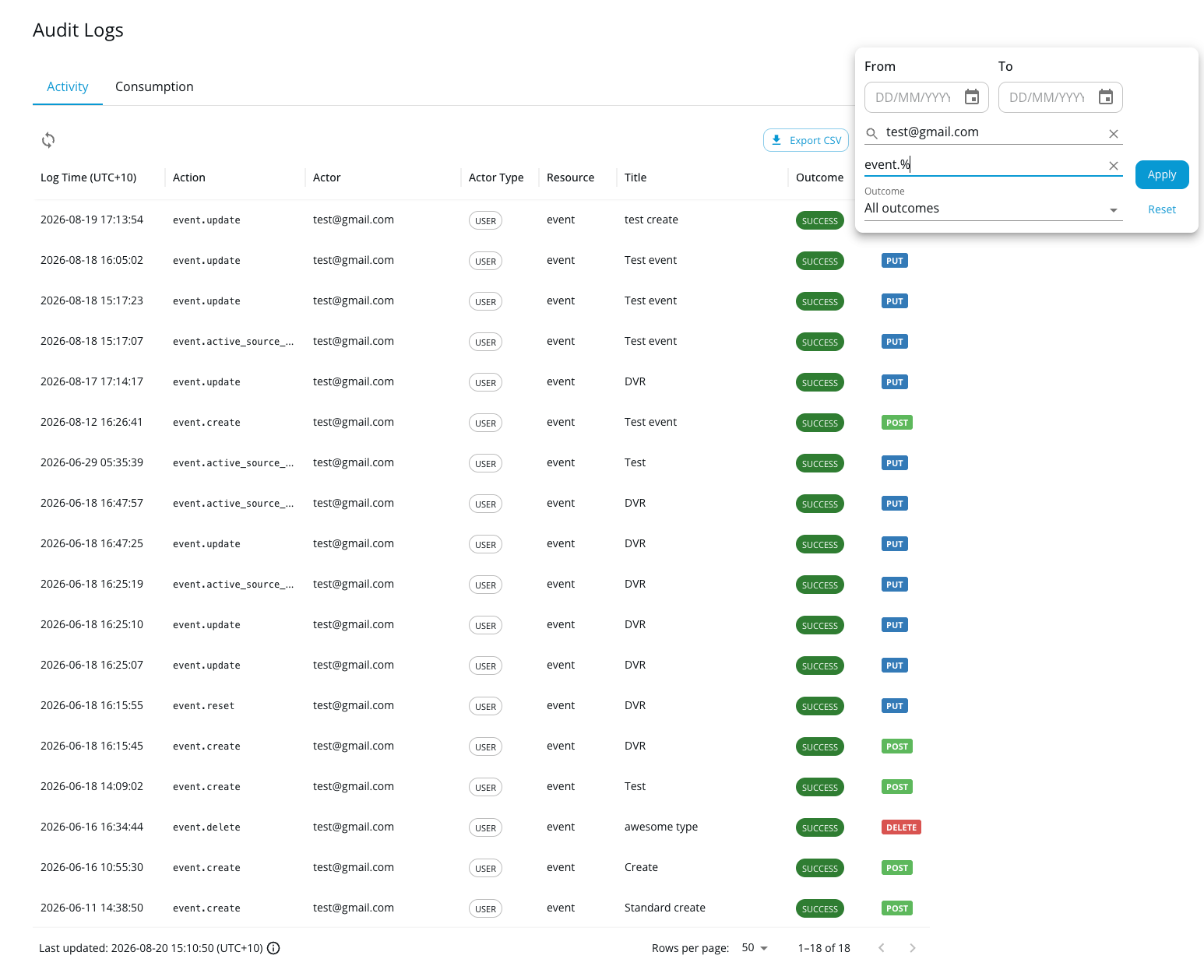
You’ll find Audit Logs under the Account tab in your sidebar. The log shows what happened, who did it, and when, with filters so you can narrow a long history down to the thing you actually care about.
Each entry records the action performed, the resource it was performed on, and the outcome, along with the email address and name of the person responsible, their IP address, and the time. Outcomes are captured as success, failure or denied, so a blocked or failed action leaves a trace rather than simply not appearing.
Query it programmatically
Everything visible in the portal is also available through the Audit Log API, which returns paginated JSON and supports the same filtering.
You can bound results by date range, filter to a specific person by email address, or filter by outcome to surface only failures and denials. Action filtering supports wildcards and negation, so you can pull every event action at once or exclude a noisy one, and a companion endpoint returns the full list of available action names so you’re not guessing at the vocabulary.
That makes it straightforward to pull audit data into an existing SIEM, compliance tool or internal dashboard on a schedule, rather than exporting by hand when someone asks.
What gets recorded
Audit logging covers activity across the account, including:
- System activity such as login, logout, SSO login and logout, and sub account changes
- Events, including restreams, archives, polls and CTAs
- Media, playlists, channels and live schedules
- Configuration including video profiles, privacy profiles, SSO configuration, player templates, player page themes, permanent links, global settings and vocabulary
- Viewer management, covering both viewers and groups
- Hardware encoders
The value of a record you didn’t know you needed
Most organisations don’t think about audit history until the moment they need it, and by then the window to reconstruct what happened has usually closed.
For teams operating under a compliance obligation, that record is often a requirement rather than a nicety. Being able to demonstrate who had access to what, and what they did with it, is a normal part of a security review, and having it on hand turns a scramble into an export. For everyone else, it’s simply faster troubleshooting. A misconfigured event is much easier to fix when you can see exactly what changed and when.
What’s coming next
This is the first release, and there’s more on the way shortly.
Log entries currently update on a scheduled basis. We’re moving to a more responsive model, so activity shows up much closer to when it actually happened and the log becomes something you can watch during an event rather than review after one.
We’re also adding more detail to each entry, so you can see not just that something was changed but what it was changed from and to. Alongside that, entries will link directly to the resource they refer to, letting you jump from a line in the log straight to the event, video or setting in question instead of going looking for it yourself.
Coverage will keep expanding too, as audit logging is added to more parts of the platform.
Switching it on
Audit Logs are available to enterprise customers, and are enabled on request rather than by default. Logs are retained for 12 months by default, and that retention period is configurable if your policy calls for something different.
If you can’t see Audit Logs under your Account tab and you’d like it switched on, or you’d like to trial it before committing, get in touch with your Account Manager, or contact our team and we’ll take it from there.
Full details, including API parameters and example queries, are in our support documentation.
More from the blog
Introducing Multi-DRM for VOD: Studio-Grade Protection Across Every StreamShark Endpoint
Widevine, FairPlay and PlayReady now protect your video library as well as your live events. With this release, every media endpoint on StreamShark carries the same...
When Video Isn’t Enough, Bring the Data Into the Stream
Watch a live football match and you can see what is happening on the pitch. But there is a lot more information being generated at the...

A Newer, Faster, and Flexible VOD Platform
A modern rework of how you manage your video-on-demand content in StreamShark, rolling out now. We’re pleased to announce the introduction of a modern, from-scratch rebuild...
See it on your own content
Book a walkthrough of StreamShark with your own video, your own encoder and the viewers you need to reach.