The best OBS settings for live streaming
For a 1080p live stream, set OBS to 6,000 kbps CBR at 60 fps (4,500 kbps at 30 fps), a 2 second keyframe interval, the high profile, x264 on veryfast or your GPU’s hardware encoder, and AAC audio at 256 kbps (160 kbps for Twitch).
Those values work on YouTube, Twitch, LinkedIn and StreamShark. Below, each setting on the Output tab in the order it appears on screen, then the Audio and Video tabs, recording and dropped frames.
Switch the Output tab to Advanced mode
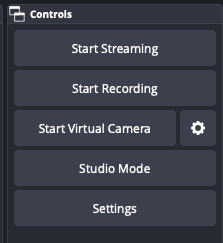
Open Settings from the Controls dock at the bottom right of the main window, pick Output, and change Output Mode from Simple to Advanced. Simple mode hides rate control, the keyframe interval, the profile and the encoder tuning, and those are the settings that decide whether a stream holds up.
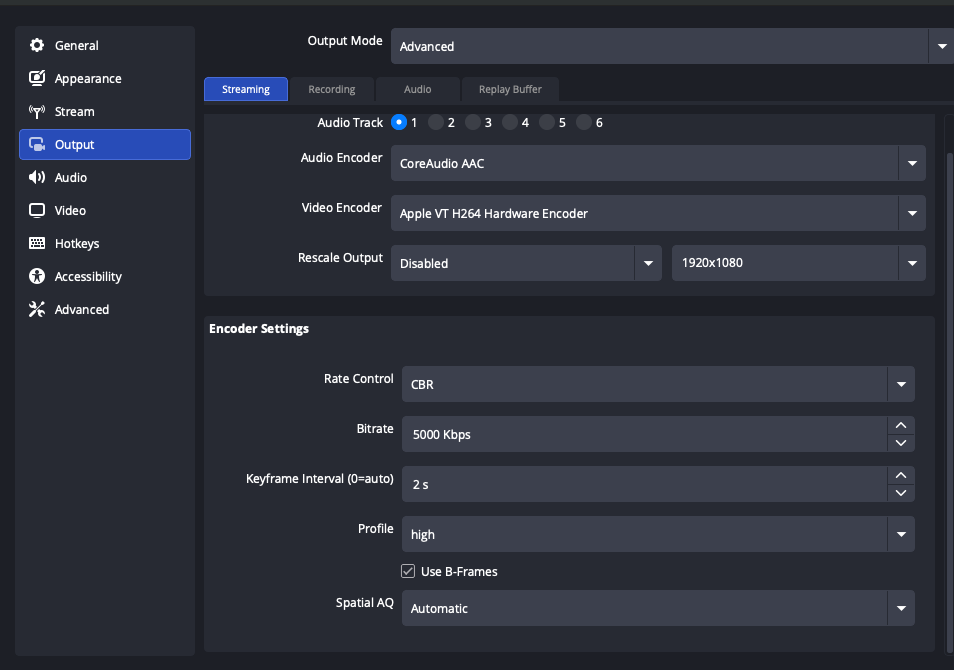
The Streaming tab has two groups. The top one picks the audio track, the encoders and the output size. The Encoder Settings group belongs to the video encoder you picked, so its fields change with the encoder.
Audio Track
Leave it on 1. OBS mixes up to six tracks and this picks which one goes out with the stream. Every source sends to track 1 by default, so a stream on any other track goes out silent. The other tracks are for recordings that keep commentary and program audio separate.
Audio Encoder
CoreAudio AAC on a Mac, FFmpeg AAC on Windows and Linux. Every streaming service takes AAC over RTMP and nothing else. The bitrate is set on the Audio tab, below.
Video Encoder
Use your GPU’s hardware encoder if the machine is also running a game or a heavy desktop, and x264 if it has spare CPU and you want the best picture per kilobit. This is the part of OBS that turns frames into H.264, and it decides whether the computer keeps up.
- x264 runs on the CPU and is on every machine. On veryfast it gives the best quality at 6,000 kbps of anything here, on a computer doing nothing else.
- NVIDIA NVENC H.264 runs on the GPU’s encoder block. From the RTX 20 series (2018) NVIDIA rates it around x264 fast and TechSpot’s testing put it nearer x264 faster on fast motion. At 6,000 kbps most viewers can’t tell. It costs almost no CPU. OBS 33.0 added it on Arm64.
- AMD HW H.264 (AMF) and QuickSync H.264 are the AMD and Intel equivalents, a step behind NVENC on older chips and even on RDNA 3 and Arc.
- Apple VT H264 Hardware Encoder on an Apple silicon Mac, as in the screenshot. It runs on the media engine, and a MacBook Air streams 1080p60 on it all day.
Stay on H.264. OBS lists HEVC and AV1 on recent GPUs and YouTube takes both, but Twitch’s standard pipeline is H.264 only and most enterprise ingests, StreamShark included, take H.264 over RTMP or SRT. A 30 percent bitrate saving is worth nothing if the ingest rejects the stream.
Rescale Output
Leave it Disabled. It scales the stream to a different size from the Video tab’s output resolution, which only helps when you record at 1440p and stream at 1080p from one session. Set the size on the Video tab instead.
Rate Control
CBR, constant bitrate, for every live stream. It holds the stream at the number in the Bitrate field, which is what the ingest, the transcoder and the player are sized for, and YouTube and Twitch both specify it. A still slide gets the same bits as a goal celebration, and that predictability is the point.
VBR looks better per megabyte but spikes above the ceiling and gets a stream dropped. CQP, CRF and ICQ target a quality level, so the output size is unknown in advance. Keep those for recording.
Bitrate
6,000 kbps for 1080p60, 4,500 kbps for 1080p30, 3,000 kbps for 720p30. Bitrate is the data OBS sends each second, and it has to cover resolution times frame rate with enough headroom that motion doesn’t turn to blocks. Type it in kbps (6000, not 6).
| Output | Resolution | Frame rate | Video bitrate | Audio bitrate |
|---|---|---|---|---|
| 2160p (4K) | 3840×2160 | 60 fps | 20,000 to 35,000 kbps | 256 kbps |
| 2160p (4K) | 3840×2160 | 30 fps | 15,000 kbps | 256 kbps |
| 1440p | 2560×1440 | 60 fps | 12,000 kbps | 256 kbps |
| 1440p | 2560×1440 | 30 fps | 8,000 kbps | 256 kbps |
| 1080p | 1920×1080 | 60 fps | 6,000 kbps | 256 kbps |
| 1080p | 1920×1080 | 30 fps | 4,500 kbps | 256 kbps |
| 720p | 1280×720 | 60 fps | 4,500 kbps | 256 kbps |
| 720p | 1280×720 | 30 fps | 3,000 kbps | 256 kbps |
| 480p | 854×480 | 30 fps | 1,000 to 1,500 kbps | 128 kbps |
| 360p | 640×360 | 30 fps | 600 to 800 kbps | 128 kbps |
The destination sets the ceiling. Twitch’s broadcast guidelines put 1080p60 at 6,000 kbps and its standard pipeline takes no more. YouTube’s encoder settings page recommends 17 Mbps for 1080p60 in H.264 and 50 Mbps for 4K60. StreamShark’s OBS setup guide lists 5,000 kbps for 1080p and 15,000 kbps for 4K, which is what the screenshot is set to.
Your upload speed sets the other limit. OBS’s connection guide says to use about 75 percent of your stable upload speed, so a 10 Mbps uplink gets a 6,000 kbps stream and no more. Our posts on upload speed and bits per pixel cover measuring the uplink and working the bitrate out from motion.
If the field won’t take the value you want, tick “Ignore streaming service setting recommendations” on the Stream tab. OBS applies Twitch’s and YouTube’s limits when you pick them from the Service list. A new bitrate takes effect on the next Start Streaming.
Keyframe Interval (0=auto)
Set it to 2 seconds. A keyframe is a complete picture; every other frame is a set of differences from the one before. Players can only start, seek or switch quality at a keyframe, and HLS segments are cut on them.
Twitch and YouTube both ask for 2 seconds and YouTube says not to exceed 4. Auto hands the choice to the encoder, and x264’s auto is 250 frames, 8 seconds at 30 fps, which means 8 second segments and an 8 second wait to start playing.
Profile
Set it to high. The profile is the set of H.264 tools the encoder may use. High turns on the ones (8×8 transforms, CABAC, B-frames) every player from the last decade decodes; main and baseline leave them off and spend more bits for the same picture. Main is only for very old set-top boxes.
Use B-Frames and Spatial AQ (Apple VT)
Leave Use B-Frames ticked and Spatial AQ on Automatic. B-frames are predicted from the frames on both sides of them, which makes them cheap, for about two frames of encoder delay. Spatial AQ moves bits within a frame from flat areas, where the eye can’t see the loss, to detailed ones.
CPU Usage Preset, Tune and x264 Options (x264 only)
Veryfast, Tune empty, options blank. The presets run from ultrafast to placebo and each step towards placebo roughly doubles the CPU work for a small gain in picture; veryfast is where that flattens for live use.
Go to faster or superfast if the status bar says “Encoding overloaded”, and only try fast or medium on eight or more idle cores. Tune zerolatency trades quality for a few frames of encoder delay you won’t see at the viewer end.
Preset, Tuning, Multipass, Look-ahead and Psycho Visual Tuning (NVENC only)
Preset P5 or P6, Tuning High Quality, Multipass Two Passes (Quarter Resolution), Look-ahead off, Psycho Visual Tuning on.
The presets run P1 (fastest) to P7 (slowest) and P5 to P6 still leaves a modern card room at 1080p60. The Low Latency tunings drop quality for encoder delay you can’t see. Multipass gives the encoder a quick first look at each frame so it spends bits better. Look-ahead tends to drop frames on busy GPUs, so leave it off. Psycho Visual Tuning is NVENC’s version of Spatial AQ. Leave GPU on 0 and Max B-frames on 2.
What audio bitrate should I use in OBS?
256 kbps on Track 1, on the Audio tab of the Output settings, or 160 kbps if the stream is going to Twitch. Each of the six tracks has its own bitrate, 64 to 320 kbps, and a Name field for recordings; only the track picked on the Streaming tab matters for the stream.
256 is where AAC-LC stereo stops being distinguishable from the source for most listeners, and it costs 1.5 percent of a 6,000 kbps stream. Twitch’s guidelines cap audio at 160 kbps, which is still clean on speech and most music. YouTube’s 128 kbps recommendation is a floor, and 96 is for a speech-only 360p stream.
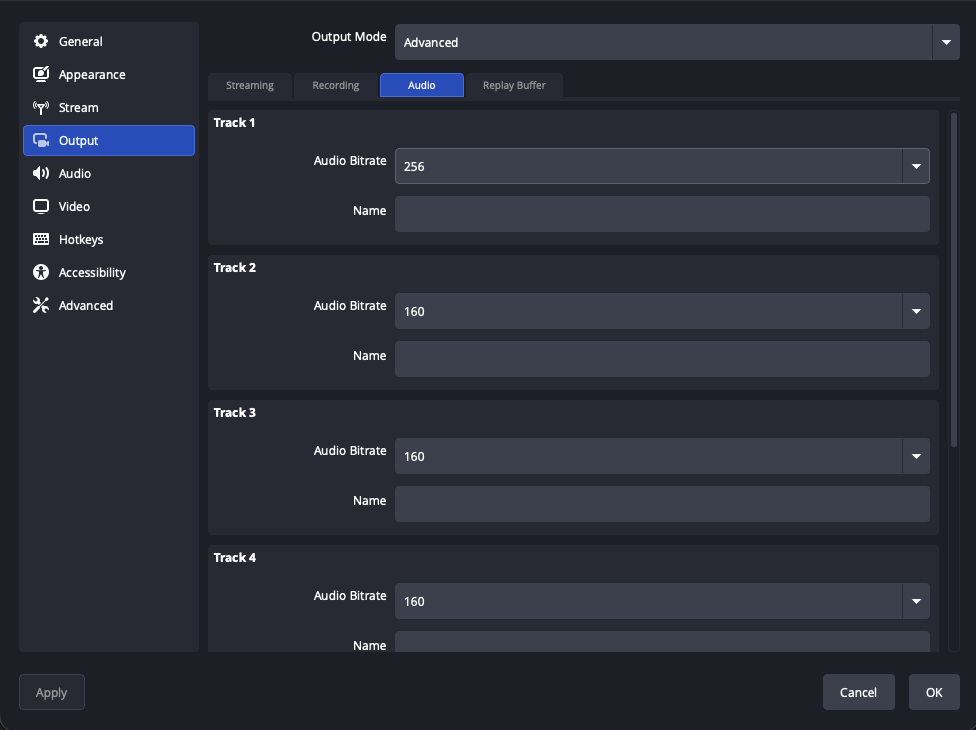
Audio is cheap next to video. The gap between 128 and 256 kbps is 2 percent of a 6,000 kbps stream and the difference is audible on a decent speaker. On the separate Audio page in the left column, leave Sample Rate at 48 kHz and Channels on Stereo.
The Video tab, resolution and frame rate
1080p30 for presentations, town halls and interviews. 1080p60 for sport, gameplay and a moving camera. The Video page has four fields.
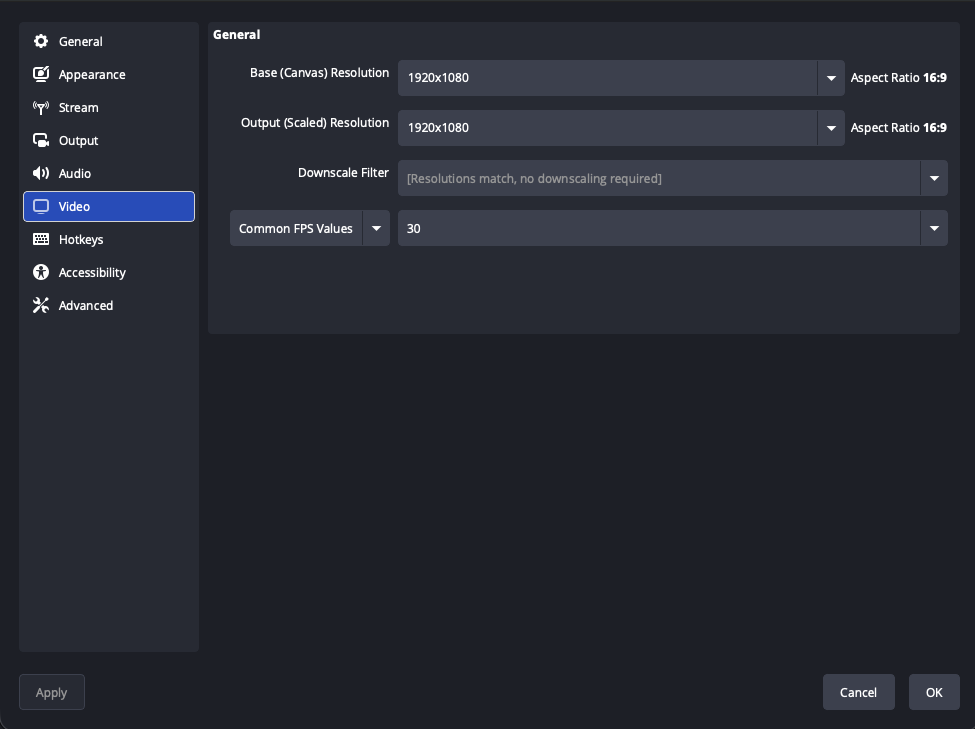
- Base (Canvas) Resolution is the size you compose the scene in. Match your main source, 1920×1080 for a 1080p camera or capture.
- Output (Scaled) Resolution is what the encoder gets. Keep it equal to the canvas. Scale down only when the canvas is a 1440p or 4K desktop and the stream doesn’t need it.
- Downscale Filter is greyed out when the two match. When you do scale, pick Lanczos; Bilinear softens text.
- Common FPS Values is the frame rate. Use 30 or 60; the fractional options (29.97, 59.94) are for matching a broadcast chain.
Frame rate is the cheapest quality lever in OBS. Dropping from 60 to 30 halves the pixels per second, so the same 6,000 kbps goes twice as far on each frame. A presenter at a lectern moves at 30 fps.
What are the best OBS settings for recording?
Record at a higher quality than you stream, with a quality-based rate control and its own encoder. The field that matters on the Recording tab is Video Encoder, which defaults to “(Use stream encoder)”. That writes the 6,000 kbps stream to disk as is, which is fine as a backup and no more, and OBS warns that such a recording can’t be paused.
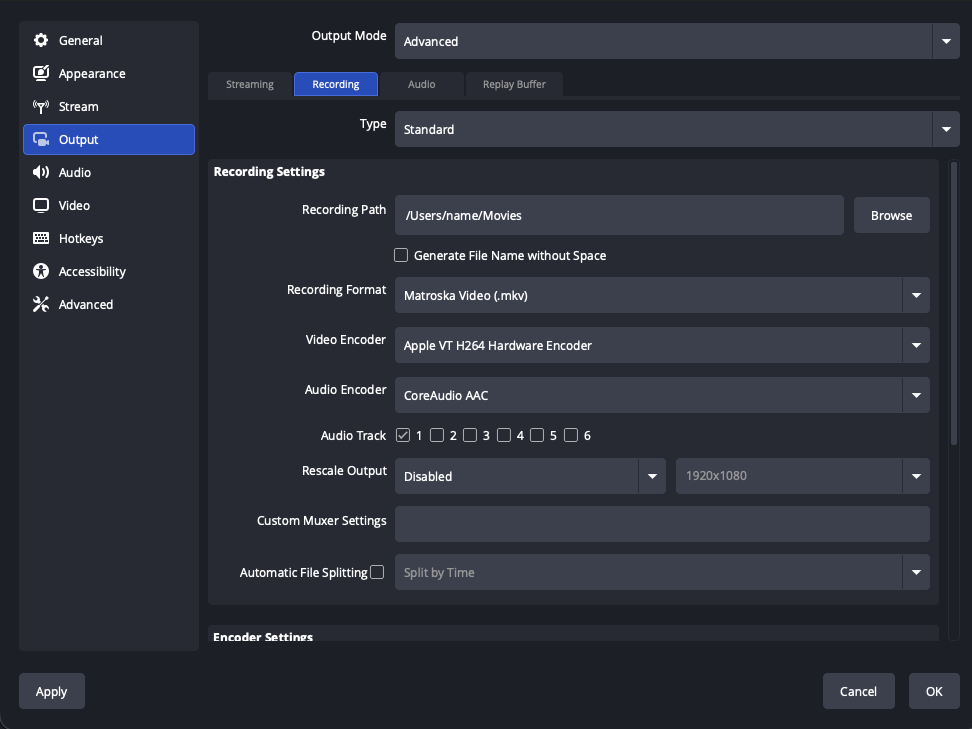
- Type stays on Standard. Custom Output (FFmpeg) is for formats OBS doesn’t list.
- Recording Path needs room; 1080p60 at the settings below is roughly 10 GB an hour.
- Recording Format should be Matroska Video (.mkv) or Hybrid MP4. Both survive a crash; a plain MP4 that isn’t closed properly is unreadable. OBS remuxes MKV to MP4 from the File menu.
- Video Encoder is where to change the default. Pick the hardware encoder you stream with, or x264, then set Rate Control to CQP 18 to 22 on NVENC and Apple VT (lower is better), CRF 18 to 22 on x264, or ICQ on QuickSync. A 1080p60 recording at CQP 20 lands around 15 to 25 Mbps depending on motion. A second encoder is a second load, so watch for “Encoding overloaded” in a rehearsal.
- Audio Encoder and Audio Track work as on the Streaming tab, except a recording can take several tracks. Tick 1 and 2 to keep commentary and program audio separate for the edit.
- Rescale Output appears once an encoder is chosen. Leave it Disabled.
- Automatic File Splitting breaks a long recording into files by time or size, handy for an all-day event.
If you want a copy of a stream going to StreamShark, the platform records the broadcast at the ingest, so most of our customers skip the local recording and use the live archive.
Why is OBS dropping frames, and what should I change?
The connection can’t carry the bitrate you set. The fix is a lower bitrate, a wired connection or a closer ingest, in that order. OBS prints the count at the bottom right of the main window next to the connection square, and its own guide says it is “extremely unlikely for OBS Studio to cause dropped frames”; the network between you and the server drops them.

- Lower the bitrate to 75 percent of your measured upload speed. Most dropped-frame reports we see are a 6,000 kbps stream on a 7 Mbps uplink.
- Turn on Dynamic Bitrate under Settings, Advanced, Network. OBS lowers the bitrate during congestion instead of dropping frames, so viewers see a softer picture rather than a frozen one. It hides the problem rather than fixing it.
- Use Ethernet. Venue Wi-Fi is shared with every phone in the room.
- Pick a nearer ingest. On StreamShark you choose the ingest when you create the event. On Twitch and YouTube, change the server under Settings, Stream.
- “Encoding overloaded” is a different problem. The CPU or GPU is falling behind, and the fix is a faster preset, a hardware encoder or 30 fps.
Our guide on stopping dropped frames walks through each fix with screenshots, and the audio delay page covers a camera that lags its microphone.
OBS settings for StreamShark
Everything above applies as written. In Settings, Stream, set Service to Custom and paste the Server URL and Stream Name from your live event into Server and Stream Key.
A second encoder pointed at the event’s backup ingest gives you something to fail over to, which no bitrate table can replace.
The setup guide has the screenshots, the StreamShark OBS plugin puts the event controls inside OBS, and the live streaming page covers the delivery side.
Common questions
Is 6,000 kbps good for 1080p?
Yes for 1080p60 with moderate motion, and generous for 1080p30. It is the Twitch maximum and the figure most guides settle on. Fast sport at 1080p60 benefits from 8,000 to 9,000 kbps where the destination allows it.
Does a higher bitrate always look better?
No. Past the point where the encoder has enough bits for the motion in the scene, more bitrate adds nothing visible, and viewers on slow connections drop to a lower rendition sooner. A 1080p30 presentation at 4,500 kbps and at 9,000 kbps look the same.
Should I stream at 30 or 60 fps?
60 for gameplay, sport and handheld camera work. 30 for people sitting and talking. At the same bitrate, 30 fps gives each frame twice the data, so a talking-head stream is sharper at 30.
Why does my stream look blocky when the camera moves?
The bitrate is too low for the motion, or the preset is too fast to spend the bits well. Raise the bitrate if the uplink allows it, then try a slower x264 preset or NVENC P6. Failing both, drop to 30 fps or 720p.
More from the blog

What to look for in a secure enterprise streaming platform for internal live events
What separates a secure enterprise streaming platform from a login page in front of a player, what to ask the vendor, and five tests to run...
Live stream analytics for corporate communications, what to measure and how to check a platform can measure it
The five questions a communications team needs answered after a town hall, which metrics matter during the event and after it, and how to test a...

Why corporate live streams fail at scale, and how to design global event delivery that holds
Corporate live streams fail at one point in the path nobody planned to lose. Where those points are, and how enterprise teams design them out with...
See it on your own content
Book a walkthrough of StreamShark with your own video, your own encoder and the viewers you need to reach.